
Patient Resources
Your Journey with SleepImage
1
Getting Started
Your provider will issue you a SleepImage-compatible recorder. Consult the relevant Quick Start Guide below on how to conduct an overnight sleep test. Your provider may answer any questions you have about the process.
2
Look for Your Patient ID
You will receive an email with your Patient ID, which may come from SleepImage or directly from your provider. You will use this ID to register your account with your provider.
3
Download the SleepImage App
Download the SleepImage App onto your mobile device simply by scanning a QR code or clicking one of the app store buttons on the right.
4
Get Set Up in the App
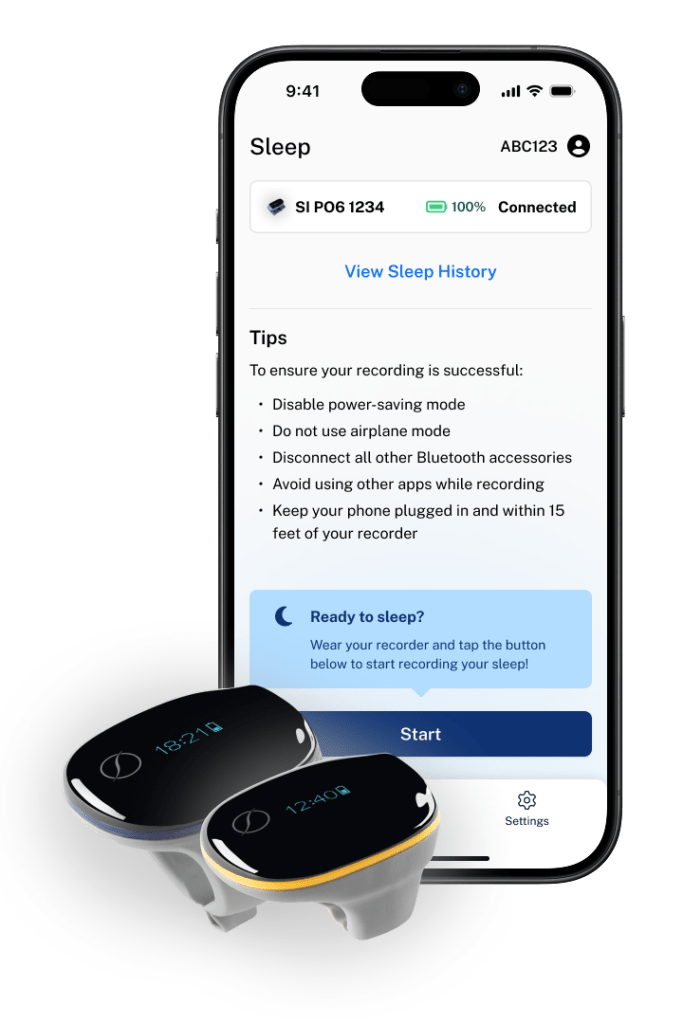
You’ll start by registering for a SleepImage patient account, which enables you to save app preferences and retain study history. You’ll then pair your recorder. Make sure your device is fully charged before starting a study.
5
Complete a Study
Wear your recorder and start your study from the Sleep tab in the app. Once you’re awake, stop your study in the same place and remove your recorder. Your study will automatically upload for your provider to review.
6
Getting Your Results
Your healthcare provider will review your results with you and explain what they mean for your overall health. If any areas for improvement are found, they’ll work with you to develop a personalized plan to help you achieve better sleep.



Compatibility
Mobile devices must be running iOS 16 or newer or Android 12 or newer.
Supported Recording Devices:
- SleepImage® Ring (Adult) – PO2
- SleepImage® Ring (Child) – PO4
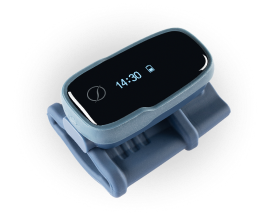
- SleepImage® Fingertip – PO6
Device User Manuals

Troubleshooting
I'm having trouble downloading the app.
If the SleepImage App does not appear in the Apple App Store or Google Play Store on your device, make sure to search for “SleepImage”, or click the store badges at the top of this page.
If you still can’t find the app, the most likely reason is an incompatible version of Android or iOS. If you have one available, please try again on a different phone or tablet.
I didn't get a one-time account verification passcode in my email.
Double check that you entered your email correctly in the app. If it matches, try checking your spam or junk folder. You can also try resending the email by clicking the “Retry” button in the app.
I didn't get a Patient ID from my provider.
Double check that you’ve given your provider the correct email address. It may be in your spam or junk folder. Note that the email may come from SleepImage or from your provider directly. Your provider may also communicate your Patient ID verbally or by text message.
My Patient ID isn't working.
Make sure the mobile device is connected to the internet and that there are no typos in the Patient ID or Date of Birth. Please contact your healthcare provider to verify your information.
I'm having trouble pairing my recorder.
Pairing must be initiated from the SleepImage App. If you paired a recorder in your Bluetooth settings, unpair it and try the pairing process in the SleepImage App again.
Make sure your phone or tablet’s operating system is up-to-date, Bluetooth is enabled, and that you have granted the app the necessary permissions.
- On iOS, go to Settings > Apps > SleepImage and enable the Bluetooth permission.
- On Android, go to Settings > Apps > SleepImage > Permissions > Nearby Devices and select “Allow while using the app.”
With the recorder powered on, press the “Search for Recorders” button and wait at least 60 seconds. Some phones take longer to discover and pair with Bluetooth accessories.
If that fails, restart both the phone/tablet and the recorder. If there is another phone/tablet available, try pairing the recorder with a different device.
During Recording: Going Out of Range
If the device status shows “Offline” or you see a “Your recorder cannot be found” error on the screen due to removing the ring and/or going out of range, try:
- Taking off the recorder and waiting for the screen to shut off.
- Put the recorder back on your finger and wait at least 20 seconds.
- SpO2 and pulse rate values should appear and the device status should show “Measuring” if successful.
My recording is not uploading.
Please note that upload time is dependent on your network connection. If your recording upload has timed out, try moving to an area with better signal. Switching from WiFi to cellular, or vice-versa, may also solve the issue. Do not close the App if a recording still says “Uploading” on the History tab as this may interrupt an upload.
My recording failed to process.
Follow these tips and try recording again:
- Accept all permissions requested by the SleepImage Mobile App in the mobile device’s system settings.
- Location permissions are required to enable use of Bluetooth.
- Notification permissions are required to allow the SleepImage Mobile App to operate in the background.
- Force-close any apps running in the background that are not the SleepImage App (see instructions for iOS and Android)
- Ensure the mobile device is fully updated and running a current operating system (see instructions for iOS and Android)
- Disable any low-power or optimized charging features in the mobile device settings
- Disconnect and power down any auxiliary bluetooth devices in the vicinity
- Keep the mobile device plugged in and within 15 ft at all times for the duration of the recording
My app is crashing or behaving unexpectedly.
If your recording is no longer active when you wake up in the morning, it is possible an app crash or other issue overnight halted the recording prematurely. Contact your healthcare provider before you return your recorder, in case they want you to repeat the sleep study.
If you repeatedly experience failed recordings, consider using a different mobile device if available.
I'm having trouble with device firmware upgrades.
The App will notify you when new firmware is available for your SleepImage recorder. Firmware upgrades are mandatory to ensure that you have the latest features and functionality for your device. You must upgrade to the latest firmware to continue recording your sleep.
During the firmware upgrade, make sure to keep the SleepImage App in the foreground on your mobile device until it is finished. Ensure your mobile device and recorder remain close to each other. Do not use your phone for other tasks while the upgrade is in progress.
Once the upgrade is complete, you may start a new recording.